How to use Zitrone
Everything the app can do, in the order you'll meet it. Zitrone ships on Android today, as a sideloaded beta — no other client is available yet. Some of what's below is deliberately undiscoverable inside the app, so this page is worth reading to the end: for one feature, it is the only documentation that exists anywhere.
First launch: your passphrase
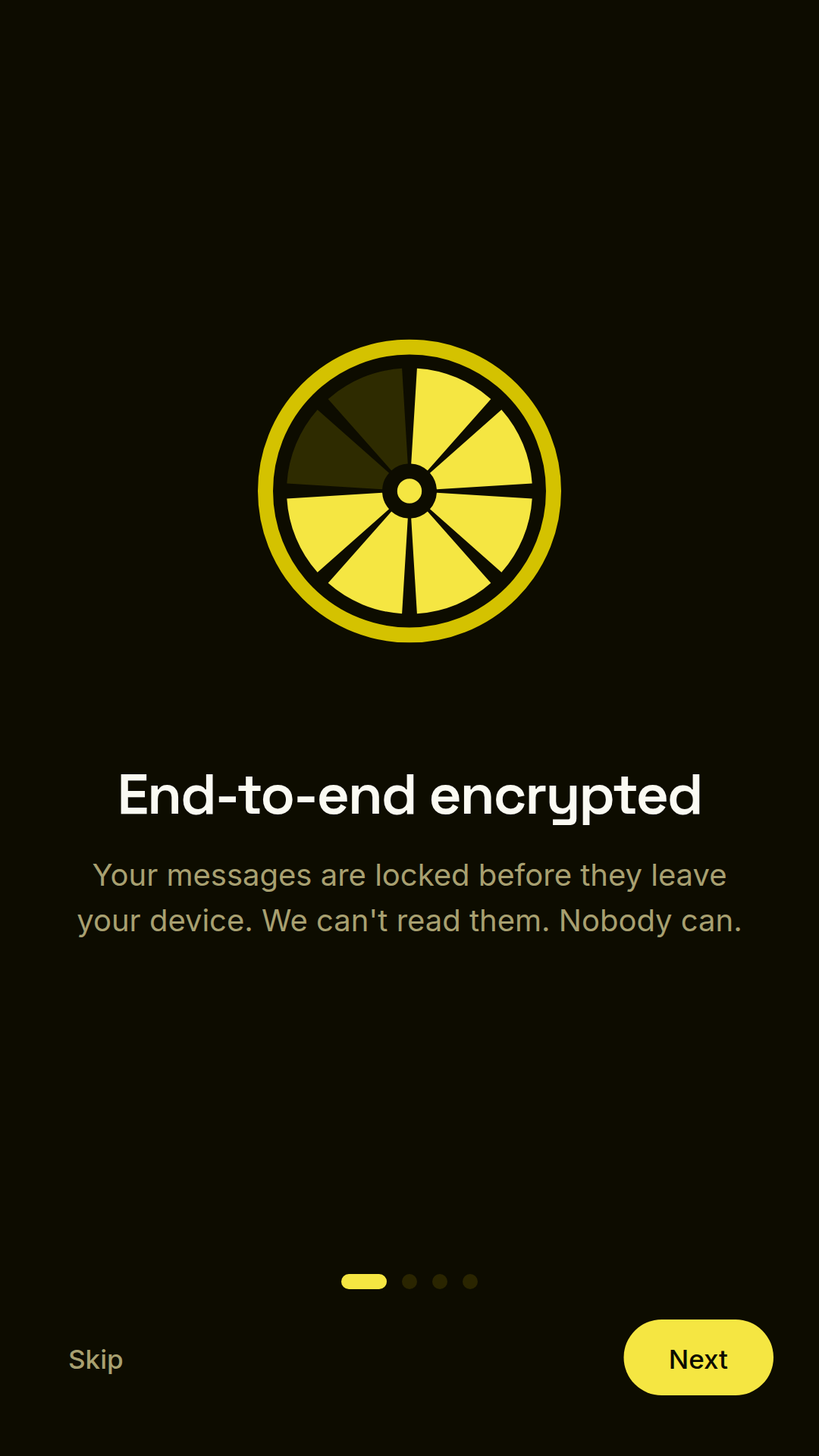
On first launch Zitrone asks you to create a passphrase. That passphrase seals a local encrypted vault holding everything the app knows — your identity keys, your contacts, your messages. It never leaves your device and it is never sent to any server.
Your passphrase is unrecoverable. Full stop.
Lock, auto-lock, and biometrics
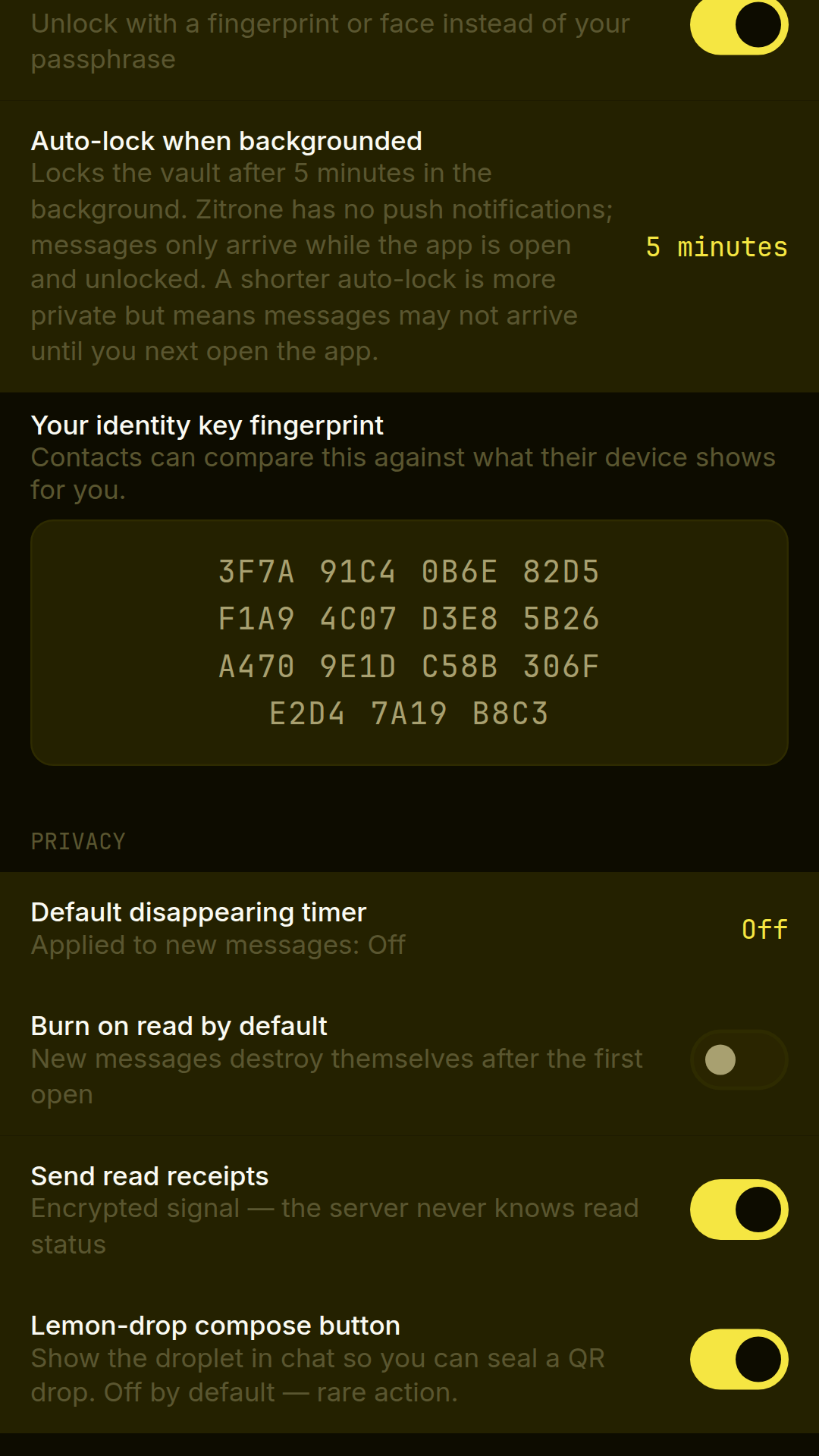
When the vault is locked, the app shows only a lock screen — keys stay sealed and nothing is readable until you unlock. Three controls shape this, all under Settings → Security:
- Biometric unlock — fingerprint or face instead of typing. On by default.
- Auto-lock when backgrounded — re-locks after the app has been in the background for a chosen period: immediate, 1, 5, or 15 minutes. Default is 5 minutes.
- Your identity key fingerprint — the code contacts compare against what they see for you (more under verification below).
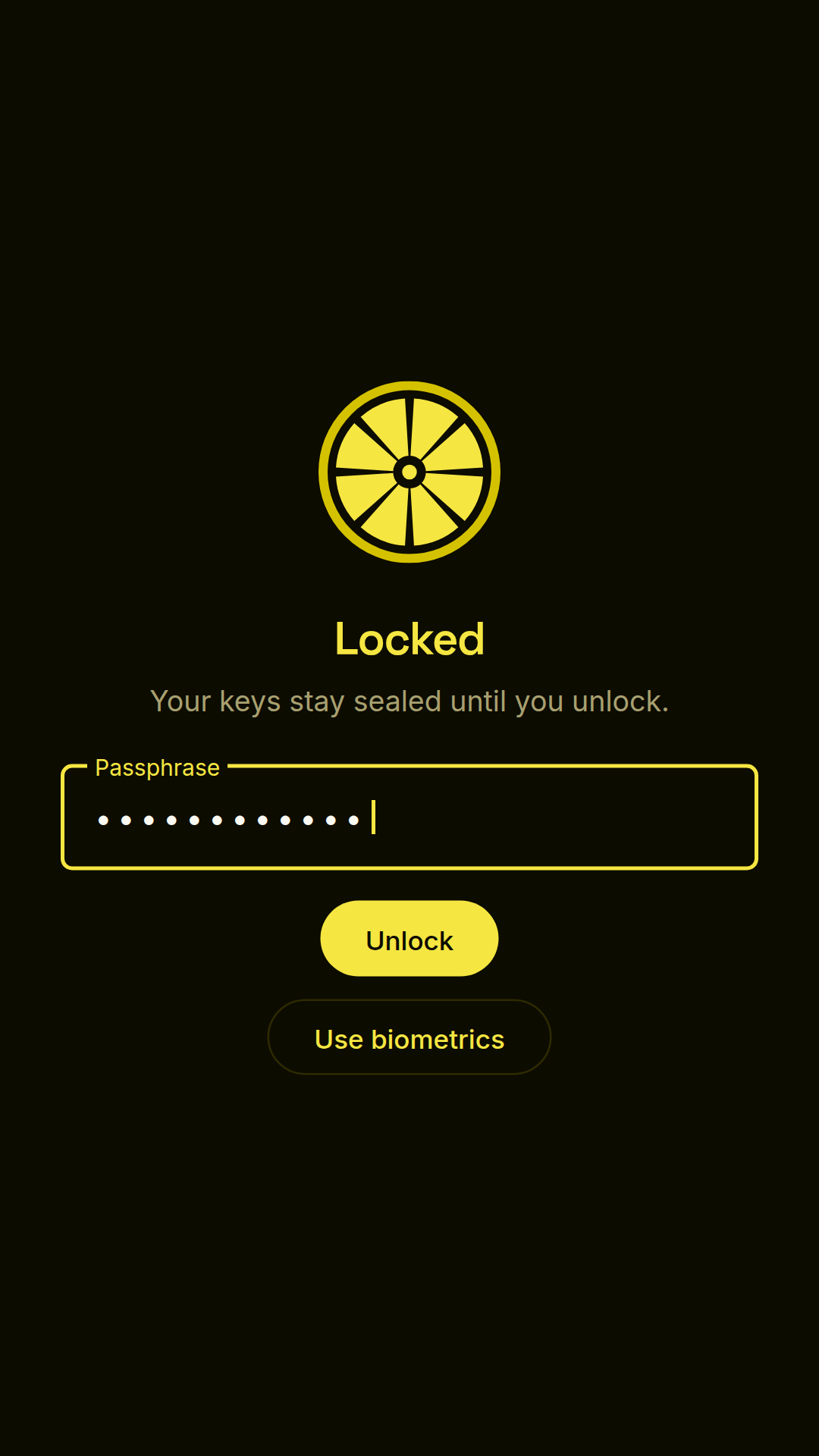
There is no in-app "lock now" button. To lock, background the app and let auto-lock fire — set it to Immediate if you want backgrounding to mean locked. That absence is deliberate, and it matters later on this page.
Adding contacts
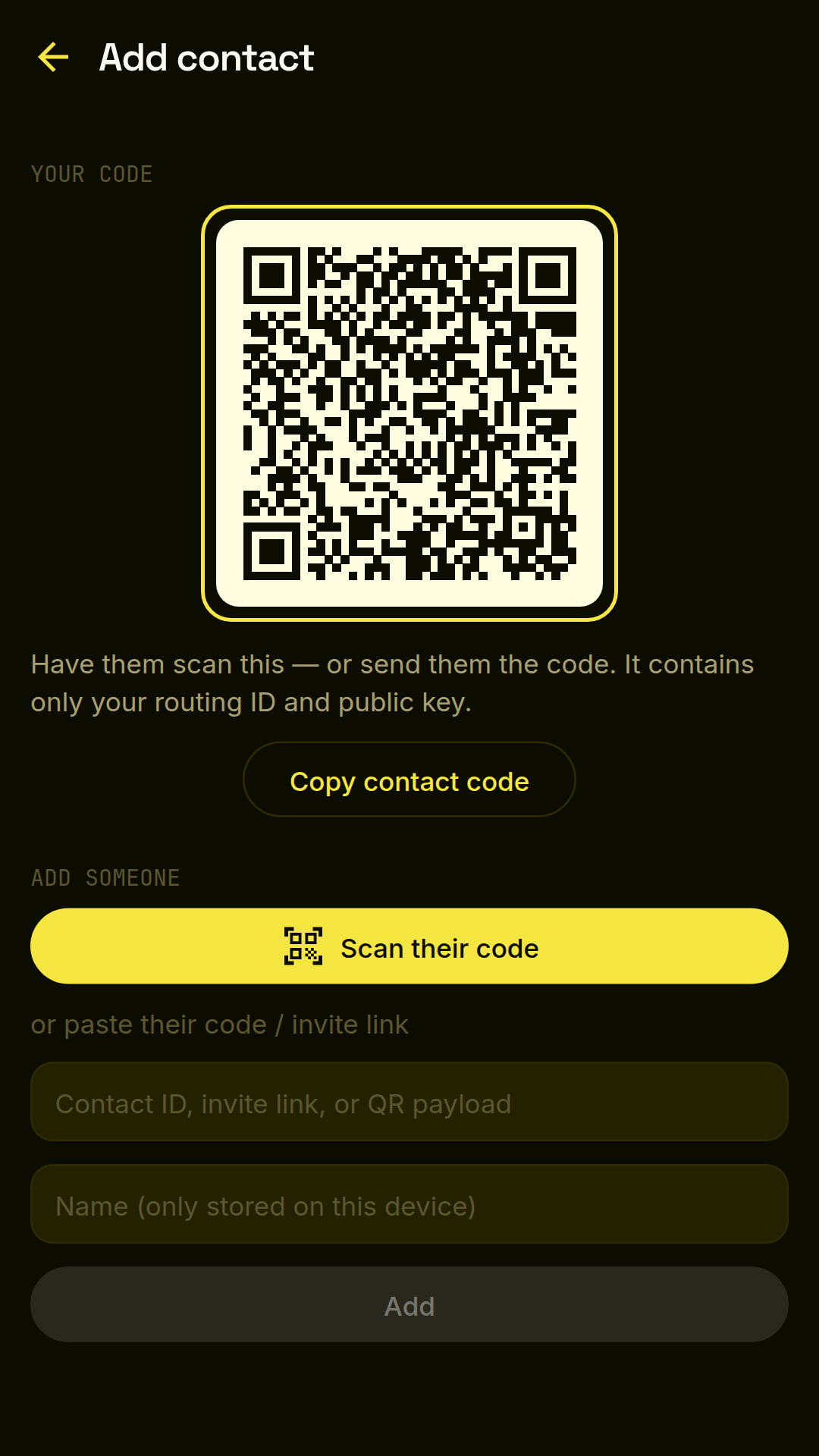
There are no phone numbers, emails, or usernames. Your identity is a key pair generated on your device, and contacts connect to it three ways — from the chat list, tap the lemon button (New encrypted chat):
- QR code — your contact code is shown as a QR for the other person to scan; scanning theirs adds them. The code contains only your contact ID.
- Pasted code or invite link — the no-camera path. Paste a contact ID, invite link, or raw QR payload into the add-contact field.
- Naming — after scanning or pasting you name the contact. The name is local-only: never sent, never synced.
Trust on first use — then verify.
Messaging and delivery states
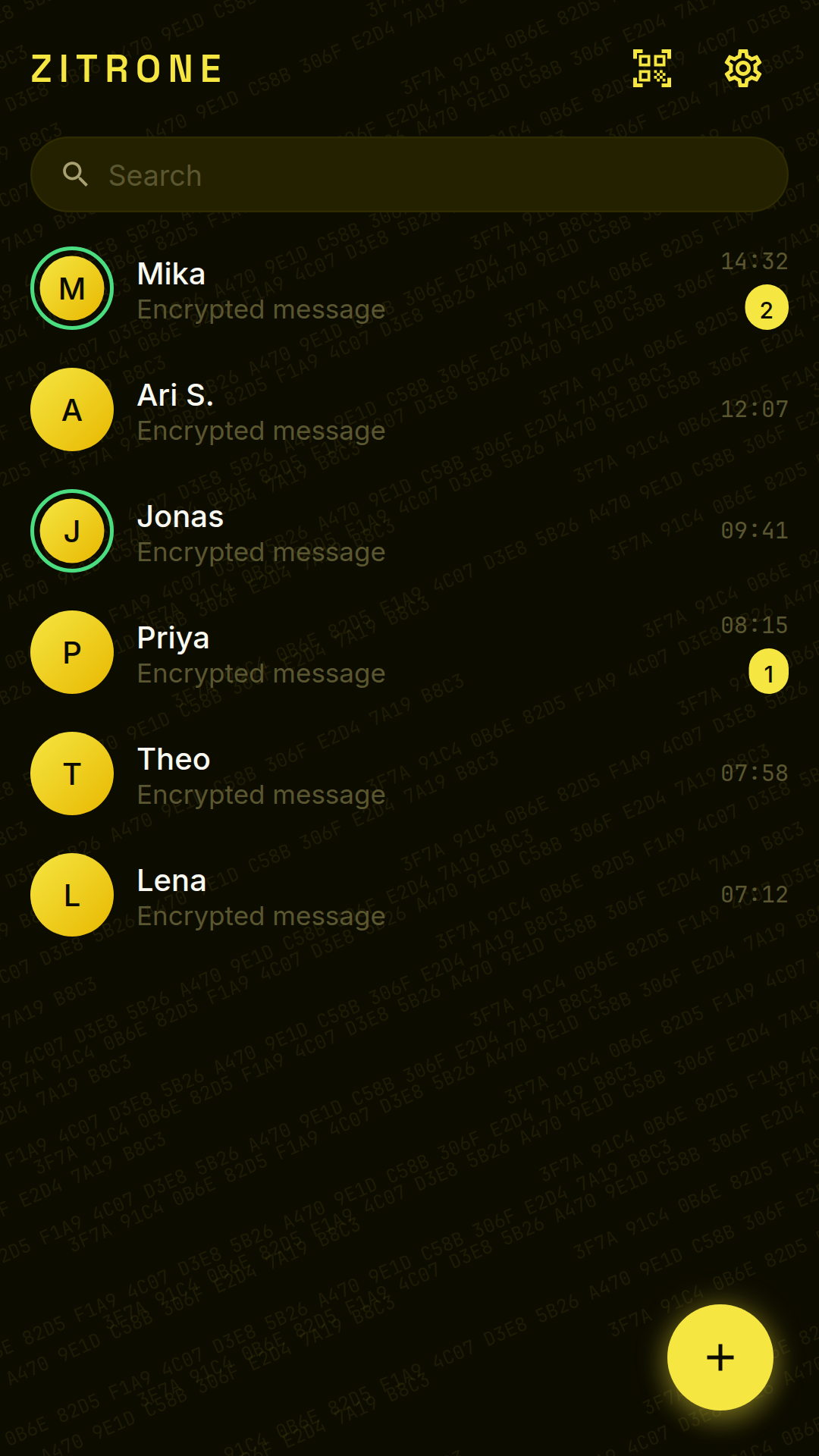
Chats are 1:1 and end-to-end encrypted with the Signal Protocol — every message gets its own key. The chat list shows your conversations with a search pill at the top; each message bubble carries a delivery state:
…— sending✓— the relay stored it✓✓— the recipient's device received it✓✓in lemon — read (read signals are encrypted; the relay never learns read status)!— failed. Tap the message to retry the send.
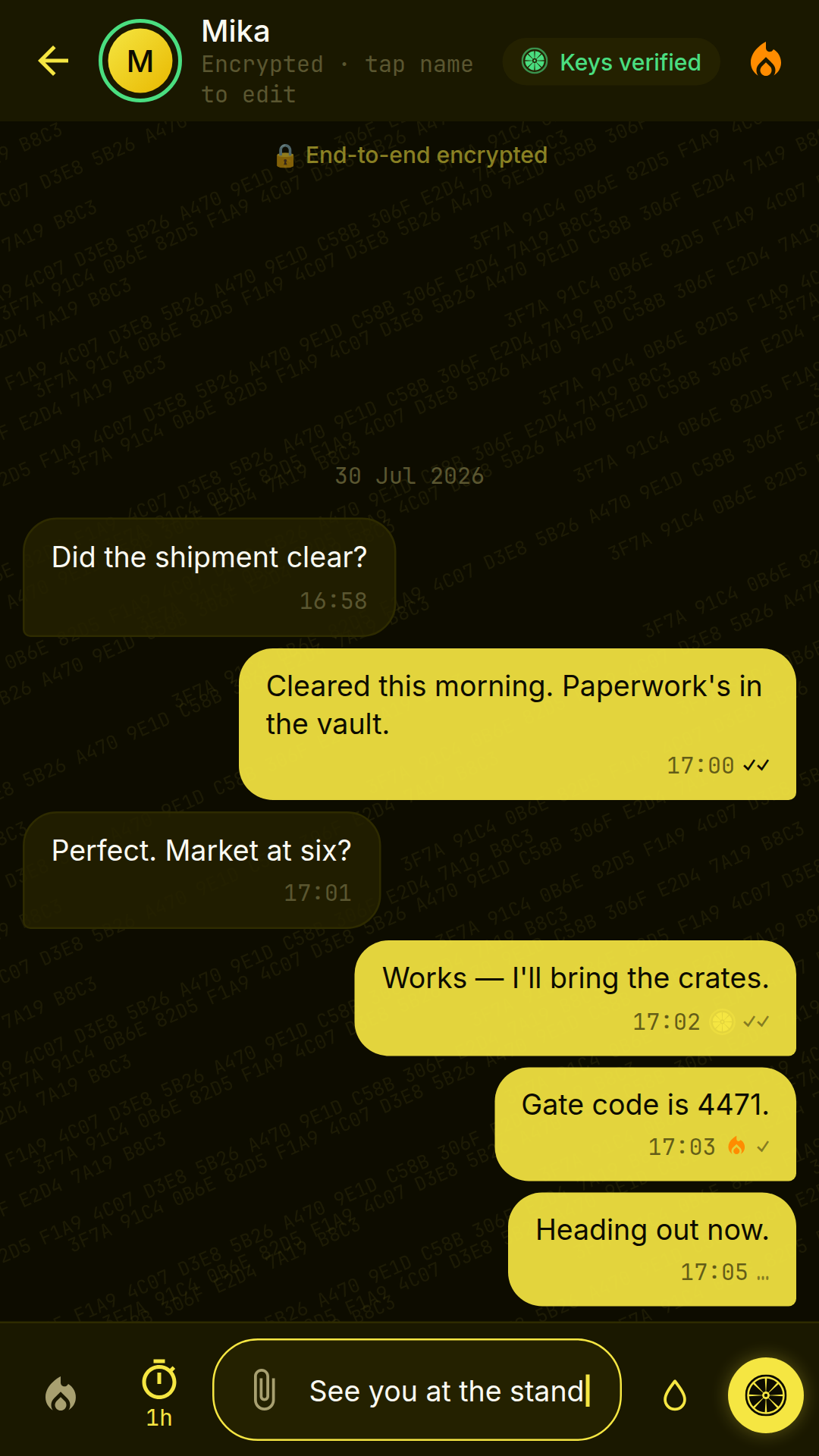
Read receipts can be turned off under Settings → Privacy (on by default). Typing indicators are automatic. To rename a contact, tap their name in the chat.
Attachments
From the paperclip in the compose bar:
- Take photo — captures inside the app through a secure capture screen.
- Photo library — the Android photo picker, images only.
- File — any document, not just images.
Every attachment is encrypted with its own key and uploaded as a blind blob: the relay stores it under a hash and never sees the key or the token needed to fetch it — both travel inside the encrypted message. The relay cannot decrypt an attachment.
Reveal-and-burn images: a received image arrives covered. Tapping it reveals it — and arms a hard burn timer. Look before you tap; the reveal is what starts the clock.
Disappearing messages and burning
Three separate mechanisms, from gentle to total:
- Disappearing timer — a time-to-live on messages. Set a default under Settings → Privacy → Default disappearing timer (off, 30s, 1m, 5m, 1h, 1d, 7d — off by default), or override it per message with the timer icon in the compose bar.
- Burn on read — the message destroys itself after its first open. Settings → Privacy → Burn on read by default, off by default.
- Burn a whole chat — the burn icon in a conversation's top bar destroys every message in it, at once.
Messages visibly dissolve into particles as they burn. That's not decoration — it's confirmation.
Lemon drops: QR dead drops
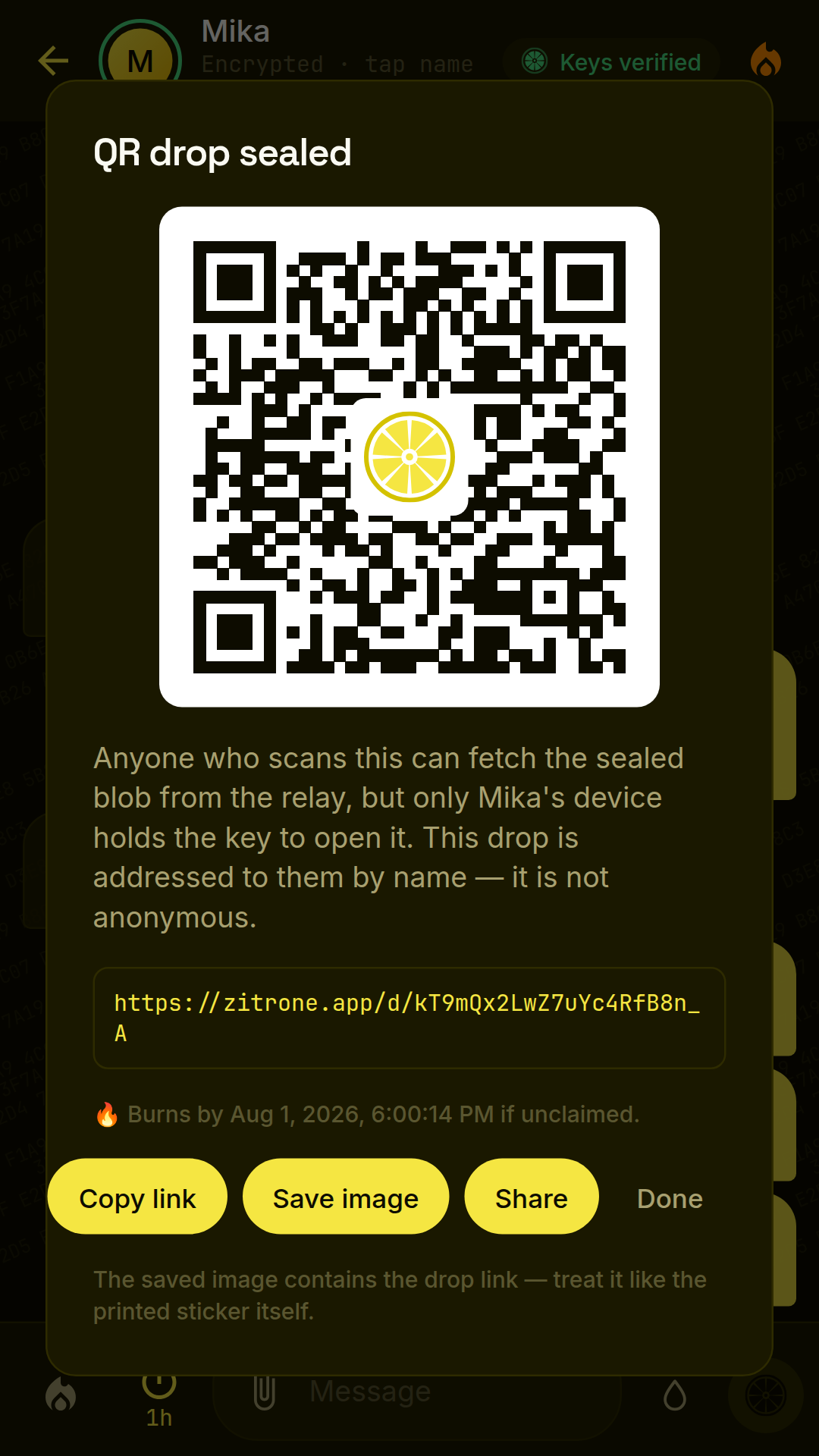
A lemon drop is a message sealed into a one-time QR code instead of sent to a contact. The relay hosts the encrypted drop, sealed to one recipient's keys; only the device it was sealed for can open it — once.
The feature is off by default. Enable it under Settings → Privacy → Lemon-drop compose button, and a droplet button appears in the compose bar.
- Sealing — compose, tap the droplet, pick a deadline. Sealing solves a small proof-of-work deposit before the relay accepts the drop.
- The QR is a pointer, not a key — that is the point. The drop is sealed to one recipient's keys, so the image can travel in the open: printed, posted on a wall, sent through a channel you don't trust. Anyone can scan it, but any device other than the sealed-for one just sees a calm explanatory screen — it cannot read the message, and it cannot burn it either (the relay's fetch is non-destructive, and destroying a drop requires a token that only successful decryption reveals). What the image does give away is that a drop exists — and on a phone without Zitrone, its link opens this website.
- One-time open — opening consumes the drop, and the app then asks the relay to destroy it. There is no second read.
- Deadline burn — a drop unclaimed by its deadline is destroyed by the relay.
- Scanning — the scan icon at the top of the chat list. A drop not meant for your device shows an explanatory screen, not an error.
Network: I2P, Tor, and the clearnet warning
Message content is end-to-end encrypted regardless of transport. What the transport decides is who can see that you connected, and from where. Zitrone resolves its route in a fixed order — I2P, then Tor, then clearnet:
- I2P — on by default (Settings → Network → Use I2P when available), but it only takes effect when the official I2P app is installed; without it the setting is inert. Settings shows an install link, including F-Droid, when the app is missing.
- Tor — opt-in (Settings → Network → Route through Tor), requires Orbot. Slower, more private than clearnet.
- Clearnet fallback — when neither router is available, Zitrone connects directly, and the Connection row in Settings → Network says so plainly: clearnet exposes your IP address to the relay and to anyone watching the wire.
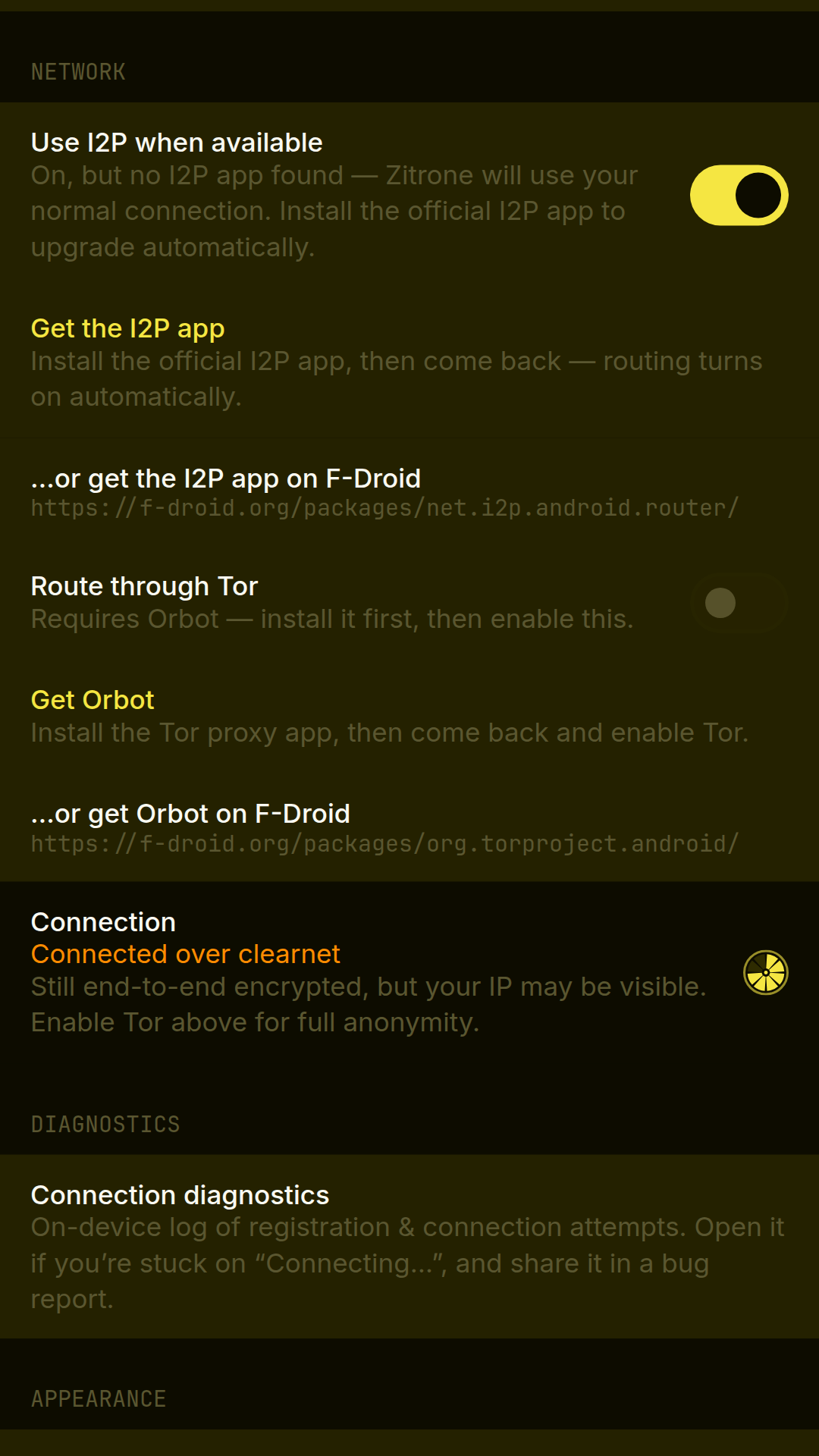
If network privacy matters to you, install the I2P app or Orbot and check the Connection row before saying anything you care about.
Pucker Burn: the duress password
Pucker Burn is a separate password that erases instead of unlocking. Set it under Settings → Account → Pucker Burn password. From then on, typing it at the lock screen wipes everything Zitrone holds on the device — every vault, all preferences, keystore entries, caches — and the app closes. The next launch looks like a fresh install.
- There is no readback, anywhere, by design. The app cannot tell you whether a burn password is set — a readback would itself be the artifact proving a duress credential exists.
- Consequently, forgetting it is unrecoverable. The setup dialog says so; believe it.
- It wipes everything. Not one chat, not one vault — the entire device image. Anyone who learns the password can do the same, with no confirmation step.
- It is device-local. A burn erases this device. It does not delete your account on the relay — for that, use account deletion below.
The second vault: plausible deniability
Zitrone can hold more than one vault on a device — fully independent identities, each with its own passphrase, contacts, and messages — built so that nothing on the device proves a second vault exists. There is no button, menu, wizard, or setting for this anywhere in the app, and there never will be: a dedicated flow would itself be the discoverable evidence that defeats the feature. This page is the only place the instructions exist. Read all of it, including the sharp edges — with no in-app warnings possible, this text is the only thing standing between you and a mistake that costs data.
Creating one
At the normal lock screen, type the same never-before-used passphrase three times, consecutively and uninterrupted. The third identical entry creates the vault and unlocks straight into it — to anyone watching, it looks like you mistyped twice and got in on the third try. (One documented nuance: a creating third entry also writes to disk, which a plain unlock does not. It shares the ordinary unlock's screen and key-derivation cost, but Zitrone does not claim the two are indistinguishable to an adversary instrumenting the device at that moment.)
- A passphrase that matches an existing vault always just unlocks it — you cannot trigger creation with a passphrase you already use. Only a passphrase matching no existing vault can accumulate the three-count.
- Uninterrupted is enforced: backgrounding the app, auto-lock firing, a biometric unlock, or the process being killed all reset the count. The three entries must happen in one sitting at one lock screen.
- The new vault starts empty: its own identity, no contacts, no messages. It is not a window into your other vault — it is a second, separate Zitrone.
Opening and switching
Opening is just unlocking: type that vault's passphrase at the lock screen. Which vault opens depends only on which passphrase you type — the app draws no distinction between them, ever.
Switching has no control either, because a "switch vault" button would be the same tell. Switching is lock, then unlock with the other passphrase: background the app so auto-lock fires — remember, there is no in-app "lock now" button — then reopen and type the other passphrase. For practical switching, set Settings → Security → Auto-lock when backgrounded to Immediate, so backgrounding always locks. On every lock, the live vault's session is fully torn down before anything can be unlocked again.
Why the instructions live here, in public
Publishing the ceremony does not weaken it. The capability was never the secret — every copy of Zitrone has it, and anyone can read this page or the source code. The secret is whether this particular device has a second vault, and nothing on the device answers that: unused vault slots are indistinguishable from used ones, the unlock does the same work whether a passphrase matches or not, and the app contains no reference to any of this. You read this website before, or away from, the device. The device — the thing an adversary might actually be holding — shows nothing.
Sharp edges — read these before you rely on it
- The passphrase is unrecoverable, and nothing will warn you at creation. Deliberately: a "you are creating a hidden vault" dialog would out the feature. The moment the third entry lands, that passphrase is the only key that will ever open that vault.
- Creation can overwrite an existing vault. A new vault is blind-placed into a random slot, and the app cannot check whether the slot is in use — knowing would break the deniability. A creation can therefore destroy a vault whose passphrase isn't the one being typed. This is the same accepted risk class as writing to a VeraCrypt outer volume: keep every vault you care about backed up in your head, and its contents either expendable or exported.
- Biometric unlock binds to one vault only. First enable wins, and the binding is never repointed while it exists. Every other vault is passphrase-only.
- There is no way to destroy one vault alone. The only destruction that ships is whole-image: account deletion (or Pucker Burn) takes every vault with it.
- Deniability targets a single seizure, not ongoing forensic access. An adversary who images the device twice can diff the snapshots and see that a slot changed. One snapshot — the compelled-disclosure scenario — reveals nothing; two reveal activity. This is an accepted, documented limit.
- Don't keep only incriminating material in a second vault. A vault whose contents look like a decoy acts like one. The deniability comes from the vault's existence being unprovable, not from its contents being boring — use it like a real, ordinary vault.
- The ceremony's shape is public knowledge. A coercer who forces you to type one chosen wrong passphrase three times in a row creates a new, empty vault. (Trying many different wrong guesses never creates one — any change resets the count.)
Deleting things — and what deletion means
- Delete a contact: long-press the conversation in the chat list, then confirm. This is immediate and permanently irreversible — it removes the conversation, its messages, and the contact's cryptographic records in one stroke. There is no undo, no trash, no grace period. Re-adding the contact later starts from zero.
- Delete your account: Settings → Account → Delete account. Purges every key, prekey, and pending message envelope from the relay, and unlinks this device. Irreversible.
- Pucker Burn (above) wipes the device but leaves the relay account registered — the two are different tools for different threats.
Where Zitrone runs today
Stated plainly, because a feature you can't download isn't a feature:
- Android — the reference implementation and the only shipped client. Everything on this page describes it. Distributed as a sideloaded APK via the beta page and a Tor onion mirror — not in any app store yet.
- iOS, desktop, web — in development, behind Android, not available to download. We'll say so here when that changes, and not before.
For the deeper technical treatment of everything above, see how Zitrone works and the security model documentation. The source — all of it — is at github.com/jackofall1232/zitrone.